Getting connected on campus
Whether you're on campus with a laptop, phone, tablet, gaming console, or other device, Northwestern's network provides secure and reliable access to the resources you need. Use the options below to connect to the campus network. We recommend connecting to the wireless network whenever possible for the best experience on mobile devices. Detailed setup instructions, registration information, and troubleshooting guides are available below.
Connect to wireless
- Open Settings → Network & Internet → Wi-Fi.
- Select NWC-RaiderNet from the available networks.
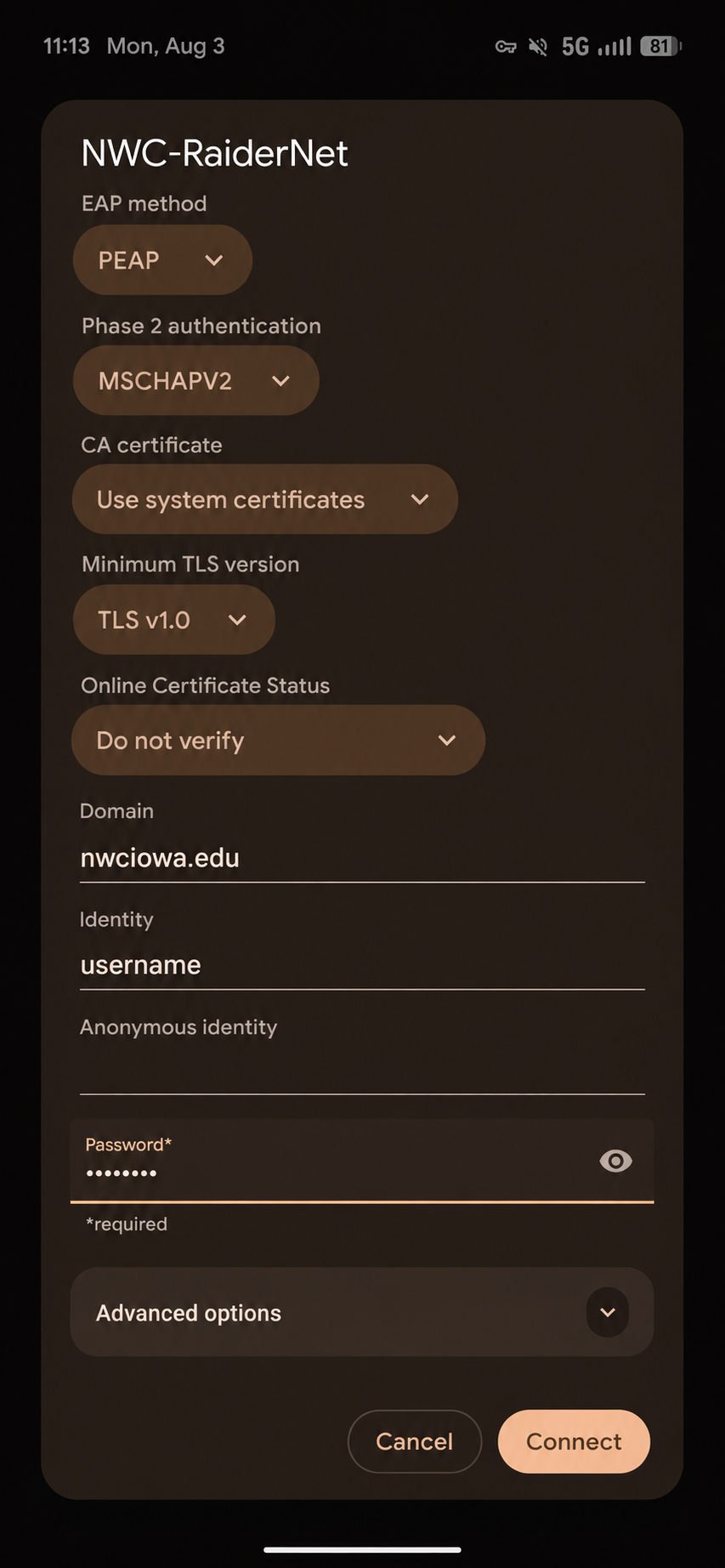
- Configure the following settings:
- EAP Method: PEAP
- Phase 2 Authentication: MSCHAPV2
- CA Certificate: Use System Certificates
- Domain: nwciowa.edu
- Identity: Your Northwestern username
- Anonymous Identity (if present): Leave this field blank
- Password: Your Northwestern password
- Tap Connect.
- Open Settings → Wi-Fi.
- Select NWC-RaiderNet.
- Enter your Northwestern username and password.
- When prompted, verify the certificate information and tap Trust.
- Click the Wi-Fi icon and select NWC-RaiderNet.
- Enter your Northwestern username and password.
- Verify the certificate is issued for nwciowa.edu
- Click Continue and enter your Mac password if prompted to save the settings.
- Select the Wi-Fi icon in the taskbar.
- Choose NWC-RaiderNet and click Connect.
- Enter your Northwestern username and password.
- If prompted to verify the server certificate, confirm that it is issued for nwciowa.edu and select Connect.
The NWC-Devices wireless network provides internet access for game consoles, smart speakers, TVs, streaming devices, and other devices that do not support enterprise (802.1X) authentication. In order to connect to this network, you must first register your the MAC addresses of your devices.
Connect to wired network
A wired network connection provides the fastest and most reliable access for supported devices in residence halls and other campus locations. Device registration is required before network access is granted.
To connect to Northwestern's wired network, you'll first need to request activation of the network port in your room. After the port has been activated, register the MAC address of each device you plan to connect. Once your registration has been approved, your devices will automatically gain access to the campus network when connected to the activated port.